A good learning app for children needs more than good puzzles. Parents also need to know how long their child has played, where they are improving, and have a way to set limits without a tug-of-war. The Parent area in Dologi is made for these things.
This article walks through each part of the Parent area and suggests ways to use it gently.
The parent gate: children don't open it by accident
The Parents button sits on the home screen. To get in, an adult has to type the answer to a multiplication such as "14 × 7 = ?". Young children can't work this out yet, and because they have to type a number rather than pick an answer, they can't guess their way in either.
The Parent area locks again when it is closed, or when the app has been in the background for a few minutes. The gate also protects other things only adults should do: viewing the plans, confirming that a reward was given, allowing more play time, and saving or printing your child's pictures.
Player profiles
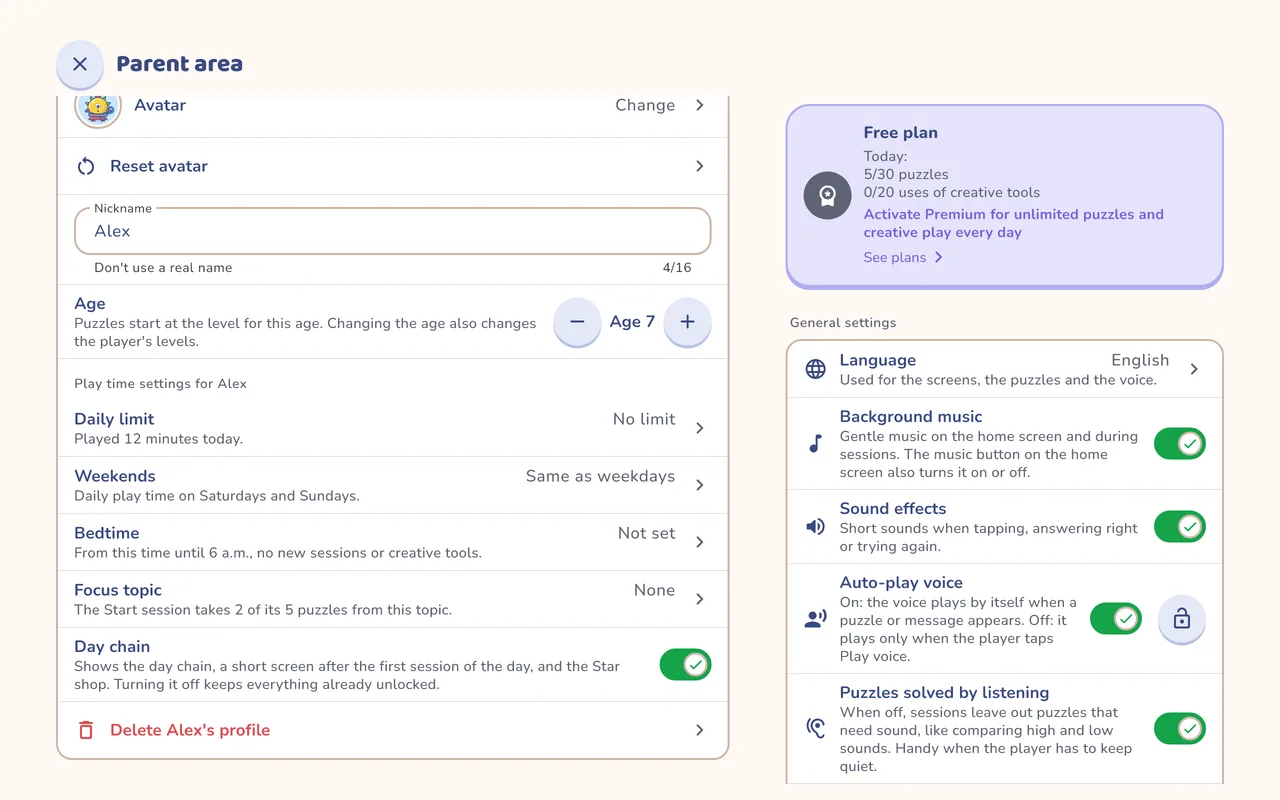
One device holds up to 4 players. Each profile needs only a nickname (the app reminds you not to use a real name), an age to choose the starting puzzle level, and an avatar, which is a drawn character, not a photo. Each player has their own progress, stars, creations and settings.
Each player has four tabs: Stats, Goals, Creations and Settings.
Play time and bedtime
In each player's Settings tab:
- Daily limit: no limit, or from 15 minutes up to 3 hours. The weekend can be set separately.
- Bedtime: from 19:00 to 22:00. From then until 6 in the morning, your child can't open a new session or the creative tools.
- Time counts puzzles and the Creative corner together. When time is up, your child sees a gentle message and an Ask a parent button. A session in progress isn't cut off.
- When needed, a parent taps Allow 15 more minutes.
In the general settings there are also Eye breaks: after every 20 minutes (adjustable), the app shows a short rest screen so your child can look into the distance.
Reports: how has your child practiced?
The Stats tab shows:
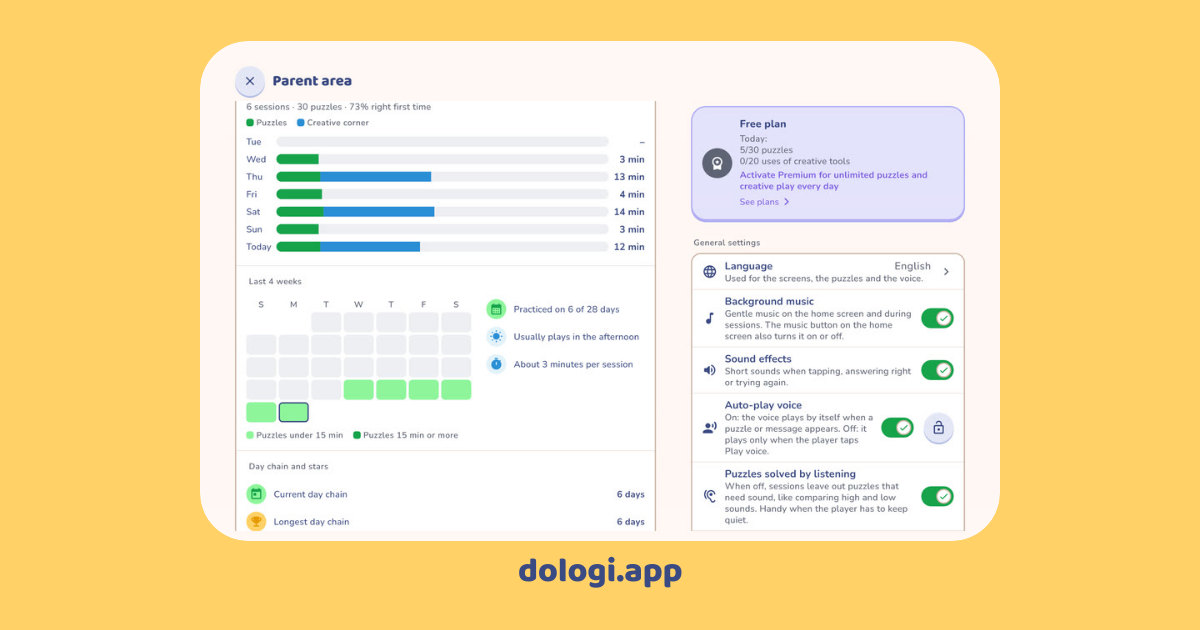
- Last 7 days: minutes per day, split between puzzles and creating.
- Highlights: days practiced, topics moving up a level, puzzles your child fixed alone after a mistake, and whether sessions felt easy or hard to your child.
- Last 4 weeks: a practice calendar, the time of day your child usually plays, and how long a session usually lasts.
- Skills: the level in each topic, the strongest topic and the one that needs more practice.
- Puzzles that felt hard: puzzles where your child looked at the answer or went wrong several times, with a Solve together button so you and your child can work on it as a team, without affecting stars or levels.
Perhaps the best part is the Parent challenge: your child picks a puzzle they solved with 3 stars to challenge you with. And Off-screen ideas suggests a question or a 5-minute game that needs no device, based on the topics your child just practiced.
Parents can also write a message with a picture for their child, which shows on the home screen until your child taps Thank you.
Family goals: real-life rewards
In the Goals tab, parents set up to 10 milestones, each one a number of practice days (3, 7, 14, 30 days…) with a reward your family picks yourselves, such as "a trip to the park" or "a new storybook".
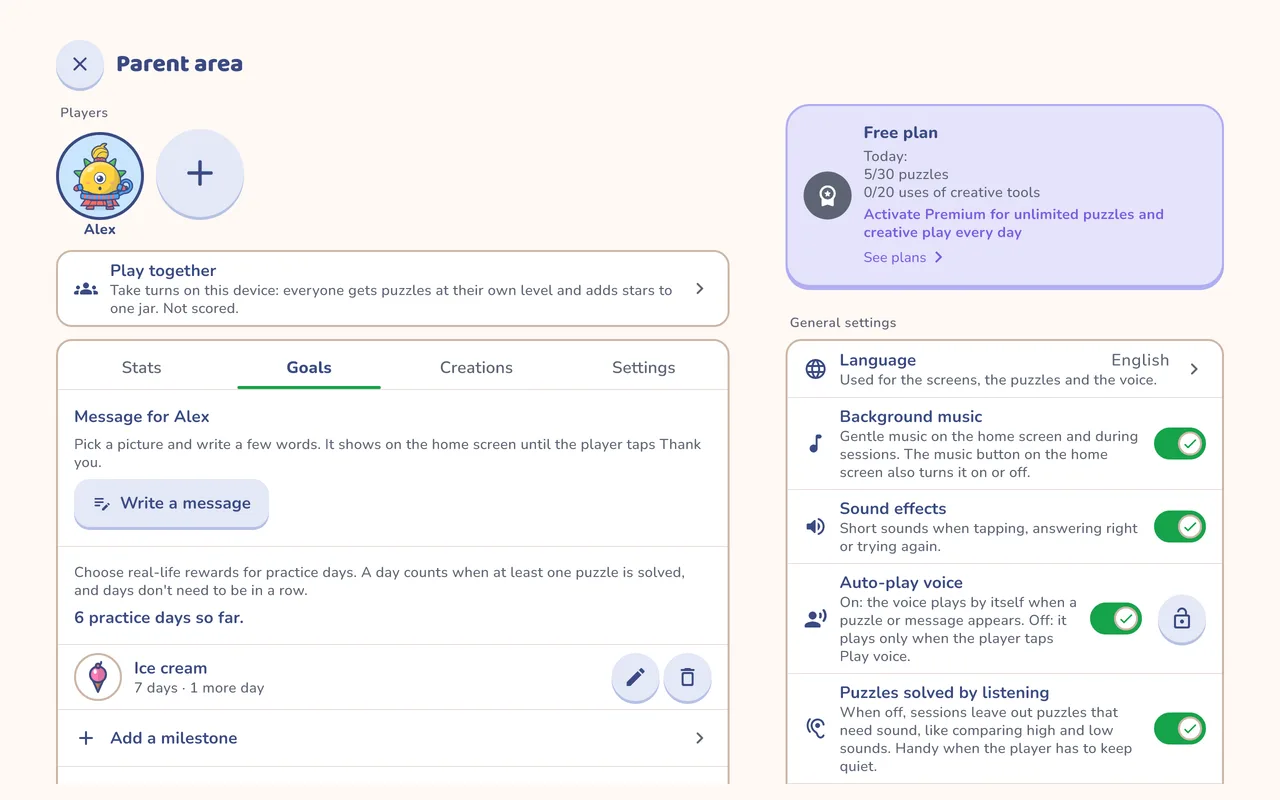
A practice day is a day your child solves at least one puzzle, and the days don't need to be in a row, so missing a few days costs nothing. When a milestone is reached, your child is invited to "Show a parent!", and the parent confirms the reward was given through the parent gate.
General settings and data on the device
- The app's Language (ten languages), background music, sound effects and automatic voice reading.
- Puzzles solved by listening: turn them off when you need quiet play.
- Streak rest days and the Day chain switch for each player.
- Creative corner: turn the whole corner on or off.
- Back up to a file and Restore from a file, to move data to a new device.
Your child's profile and progress are stored only on the device and are not sent to a server. Dologi has no ads and no tracking tools. The server holds only the parent's account and plan details, used when playing on the web.
In short
- The parent gate is a multiplication that has to be typed in, so young children can't open it by accident.
- Play-time limits, bedtime and eye breaks; when time is up, your child asks a parent, and a session in progress isn't cut off.
- Reports for 7 days and 4 weeks, skills and hard puzzles, with ideas for solving together and a Parent challenge.
- Family goals count practice days that don't need to be in a row, and reward with something in real life.
Read more: How much screen time is right for children, and how to choose a safe learning app · Turning off the screen without tears: agreeing on screen time and giving a warning